


Easy Draw: Learn How to Draw
4.3102.00 Reviews
App Specs
- Version
- 1.1.6
- Updated On
- License
- Free
- Downloads
- 1,000,000+
- Developer
- CEM SOFTWARE LTD
- Categories
- Education
- Platform
- Android
Screenshots
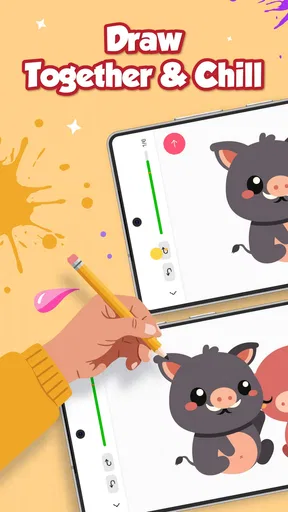
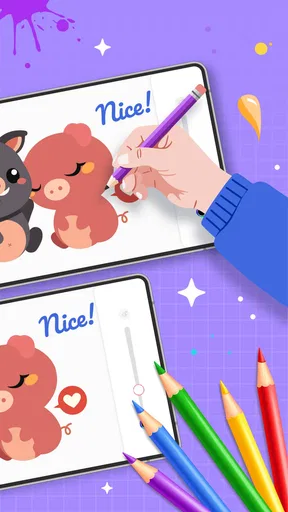
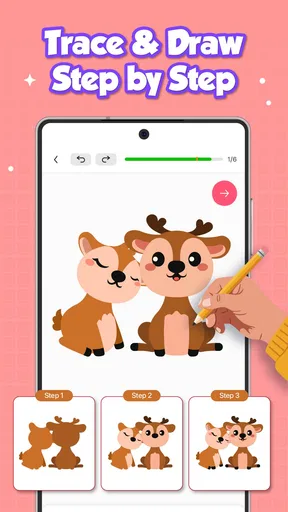
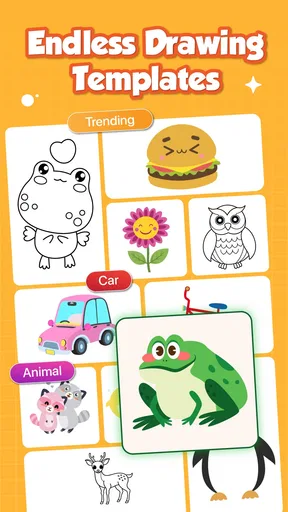
 Analysis by AppCompare
I like drawing apps best when they make it easier to begin, rather than promising that a few taps will turn anyone into an artist. Easy Draw: Learn How to Draw is aimed at that first hurdle: finding a subject, following a clear sequence, and getting a sketch onto the page without needing a class or a complicated setup. It is an education app from CEM SOFTWARE LTD, and its step-by-step approach makes it most appealing to beginners and casual doodlers who want a calm, guided starting point.
What the free option means in practice
The app is free to install, which lets you try its drawing lessons without paying upfront. It also offers in-app purchases priced from $4.99 to $29.99 per item, so “free” does not mean every possible part of the experience is necessarily included at no cost. I would treat the free access as a chance to see whether the teaching style and subject choices suit you before deciding whether any paid item is worth considering.
That distinction matters if you are comparing it with a pencil-and-paper tutorial or a free video. Those alternatives may cost nothing too, but they can require more searching, pausing, or replaying to work through a drawing. Here the appeal is having a guided lesson in one place. I would not buy anything just because a lesson looks appealing in a preview; first try drawing along and decide whether the steps are useful enough to justify spending.
Learning by following a drawing, one step at a time
From the moment you launch Easy Draw, you’re greeted with a user-friendly interface that’s as inviting as a warm cup of coffee on a chilly morning. The home screen is neat, showcasing categories like animals, people, cartoons, and more. You’ll find yourself tapping around, eager to see what's next.
The app is designed to cater to all skill levels. Whether you're a complete newbie or someone who’s been sketching for years, there's something here for you. The variety of lessons is impressive, ranging from simple shapes to complex portraits. It’s like having a personal art teacher right in your pocket!
Following a lesson without losing your place
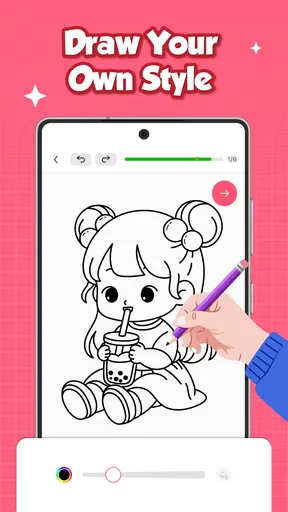
Now, the real fun begins when you select a drawing tutorial. Each lesson is broken down into easy-to-follow steps. The instructions are clear, and the visuals are spot on, allowing you to see exactly where each line should go. There's a bit of magic in watching a few simple lines slowly morph into a recognizable figure.
One of the features I absolutely loved was the ability to zoom in on the details. It’s those little touches that make a big difference, especially when you're working on intricate designs. Plus, there’s an undo button for those "oops" moments when your hand slips.
Worth Reading Before You Choose

EA SPORTS FC Mobile 26 Is a Bigger Football Game, but It Takes Time

Flipboard Shows What News Apps Must Do Beyond the Feed

Switching to Android Auto Means Rethinking Your Driving Routine

Google Calendar Makes a Crowded Week Easier to Manage

Ludo King Makes the Most of the Minutes Between Plans

Baby Panda World Brings Quick Play to Modern Phones, but Its Game Library Feels Busy
Tools for making the sketch your own
The app doesn’t just stop at guiding you through the drawing process. It also provides a variety of tools to enhance your art. You can choose from different brush sizes and colors, allowing you to add a personal flair to your creations. It’s like having a mini art studio on your phone.
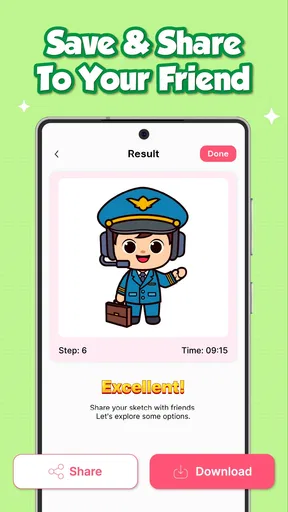
Another neat feature is the ability to share your artwork directly from the app. Whether you’re showing off to friends or posting on social media, it's seamless and quick. And who doesn’t love a bit of bragging rights when you nail that tricky sketch?
Who gets the most from the guided format
If you’re looking for a way to relax and unwind, there's something truly therapeutic about drawing. Easy Draw makes it easy to just lose yourself in the creative process. The app also updates regularly with new tutorials, so there’s always something fresh to explore.
In a world where life can sometimes feel a bit chaotic, having a creative outlet like this can be a real blessing. Plus, it’s a great way to improve your drawing skills without the pressure of a formal class.
The clearest use case is a short break when you want to do something more hands-on than scrolling. I might choose an animal lesson, put the phone beside a notebook, and copy one stage at a time. A useful habit is to pause after each step and draw the shape in your own proportions instead of tracing every line mechanically. That small change turns a follow-along exercise into practice noticing curves, spacing, and how separate parts fit together.
For a child or a family activity, the Everyone age rating makes the app suitable for a broad audience, though I would still expect an adult to help younger children handle a phone and any purchase decisions. It can also work for someone who has not drawn since school and wants a low-pressure way to restart. The lessons provide a destination for a blank page, while the undo control makes experimentation less intimidating.
Where guided lessons help—and where they do not
The strongest reason to choose this app over a general drawing canvas is structure. A blank canvas gives experienced artists freedom, but it can leave a beginner wondering what to draw first. A video tutorial offers another route, especially when you want to hear an instructor explain technique, but it often means stopping and replaying while your hands are busy. Easy Draw’s sequence of visual steps is a practical middle ground: less open-ended than a sketching tool and more directly organized around making a particular picture.
That structure has a trade-off. Copying a finished example can help build confidence, but it does not automatically teach proportion, perspective, or how to invent a subject from memory. If your goal is to develop those fundamentals in depth, a dedicated drawing course, a teacher, or deliberate practice from real references will give you a broader education. I would use these lessons as a way into drawing, not as a replacement for every kind of art instruction.
A good workflow is to draw the lesson once as shown, then try it again with one deliberate variation: change the angle, alter a detail, or use a different color. Keep the first attempt nearby for comparison. This makes the app’s step-by-step format more useful than simply completing one picture and moving on, and it helps reveal whether you understood the construction or only followed the on-screen guide.
Small practical choices that improve a session
You do not need to approach every lesson as a finished artwork. If you are using a phone, a finger is convenient for quick sketches, while a stylus can make controlled marks feel easier; either way, zooming in is especially helpful when a step contains small details. I would start with a simple subject when drawing on a small screen, then save more intricate designs for a larger display or paper beside the device. That is a practical limitation of drawing on a phone, not a flaw unique to the lessons.
The undo button is useful, but I would avoid treating it as a reason to erase every imperfect line. Some uneven marks are part of learning how your hand moves. Use undo when a stroke clearly goes in the wrong direction, then keep going; repeatedly correcting tiny variations can make a relaxed activity feel like a test. Choosing a brush size before beginning also helps keep outlines consistent, while color is best added after the basic shapes are in place.
Sharing a sketch can be a satisfying finish, but it is optional. I would first decide whether I want a quick personal exercise or a piece I plan to show someone. For the former, there is no need to polish every edge. For the latter, taking a moment to review the proportions before sharing is more useful than adding lots of color to a drawing whose basic outline still feels off.
How to judge whether the paid items are worthwhile
There is no single right answer to whether an in-app purchase offers good value, because it depends on what is available to you and how often you use it. The sensible test is personal: spend time with the free experience, notice whether you return to it, and consider a purchase only if it solves a clear need for your drawing routine. A one-off burst of curiosity is a weaker reason to pay than a habit of practicing several times a week.
The app has a 4.4 average from around 11,000 ratings, and it has been installed over a million times. Those figures suggest that plenty of people have tried it, but they cannot tell me whether its particular lessons match your taste or whether paid items will suit your budget. It is free to start, and that makes trying the guided format a fairly low-commitment way to decide.
Who should look elsewhere
I would skip this as a primary tool if you already draw comfortably and want a full-featured digital art workspace, precise layer-based editing, or a course built around fundamentals rather than copying example drawings. Its strengths are approachable lessons and simple creative tools, not a claim to replace specialist software. Someone who mainly wants to paint freely may prefer a conventional drawing app, while a learner who benefits from spoken demonstrations may find video instruction easier to follow.
It may also be less satisfying if you want every drawing to look polished immediately. Step-by-step guidance reduces the blank-page problem, but it cannot remove the need to practice line control or make the result identical on every screen and with every drawing tool. If you are comfortable accepting imperfect first attempts, that is part of the appeal; if you want automatic correction or a finished image with little effort, this is not the right kind of app.
Platform details and a realistic recommendation
Easy Draw is free, carries an Everyone content rating, and its current version is 1.1.2. It was released on June 19, 2025, and supports Android 8.0 and later. The app’s rating is based on around 11,000 ratings, alongside about 60 written reviews, and it has passed a million installs. I see those figures as useful context, not a promise that every user will enjoy the same lessons or tools.
For a realistic routine, I would open it during a quiet ten-minute break, pick one uncomplicated subject, and work on paper while glancing at the phone for each stage. I would avoid trying to finish a detailed drawing in a crowded commute: balancing a phone, managing a small screen, and keeping a pencil steady can make the guided process more frustrating than relaxing. At home, the same lesson can become a shared activity, with each person choosing their own colors or adding a small personal detail at the end.
So, grab your stylus or just use your finger, and let Easy Draw: Learn How to Draw guide you on a delightful artistic journey. You might just surprise yourself with what you can create!
Pros
- Intuitive interface for beginners.
- Wide variety of drawing tools.
- Step-by-step tutorials available.
- Offline mode supported.
- Regular updates with new content.
Cons
- Limited advanced features.
- Ads can be intrusive.
- Some features require in-app purchases.
- Occasional crashes reported.
- No support for multi-layer projects.
FAQs for Easy Draw: Learn How to Draw
What is Easy Draw: Learn How to Draw?
Easy Draw: Learn How to Draw is an intuitive app designed for beginners and art enthusiasts to learn drawing techniques. It offers step-by-step tutorials, interactive lessons, and a variety of tools to help users develop their skills. Whether you're interested in sketching or digital art, this app provides a comprehensive learning experience.
Is Easy Draw suitable for all skill levels?
Yes, Easy Draw is designed to cater to all skill levels. Beginners will find the step-by-step guides helpful, while more advanced users can benefit from the extensive toolset and challenges. The app provides a scalable learning curve, ensuring everyone can improve their drawing skills at their own pace.
Does Easy Draw require an internet connection?
While some features of Easy Draw can be accessed offline, such as basic drawing tools and saved projects, an internet connection is required for accessing online tutorials, updates, and community features. For the best experience, it's recommended to use the app with a stable internet connection.
Are there in-app purchases or subscriptions?
Easy Draw offers a variety of in-app purchases and subscription options. Users can access additional tutorials, premium tools, and ad-free experiences through a subscription model. While the app provides a range of free features, premium content may enhance the learning experience for those willing to invest.
What devices are compatible with Easy Draw?
Easy Draw is available for both Android and iOS devices. It is optimized for smartphones and tablets, ensuring a smooth user experience across different screen sizes. Users should check the app store for specific device requirements to ensure compatibility before downloading.


